How Websites Work Explained Simply
Introduction
If you’re new to building websites, terms like domain, hosting, and CMS can feel confusing at first. Yet, these are the core components behind every website you visit.
Understanding how websites work (domain, hosting, CMS explained simply) is essential before you create your own site. It helps you make better decisions, avoid common mistakes, and choose the right tools.
In this guide, we’ll break everything down in beginner-friendly language. We’ll also show how modern platforms like Wix and Squarespace simplify the entire process.
The Big Picture: How a Website Works
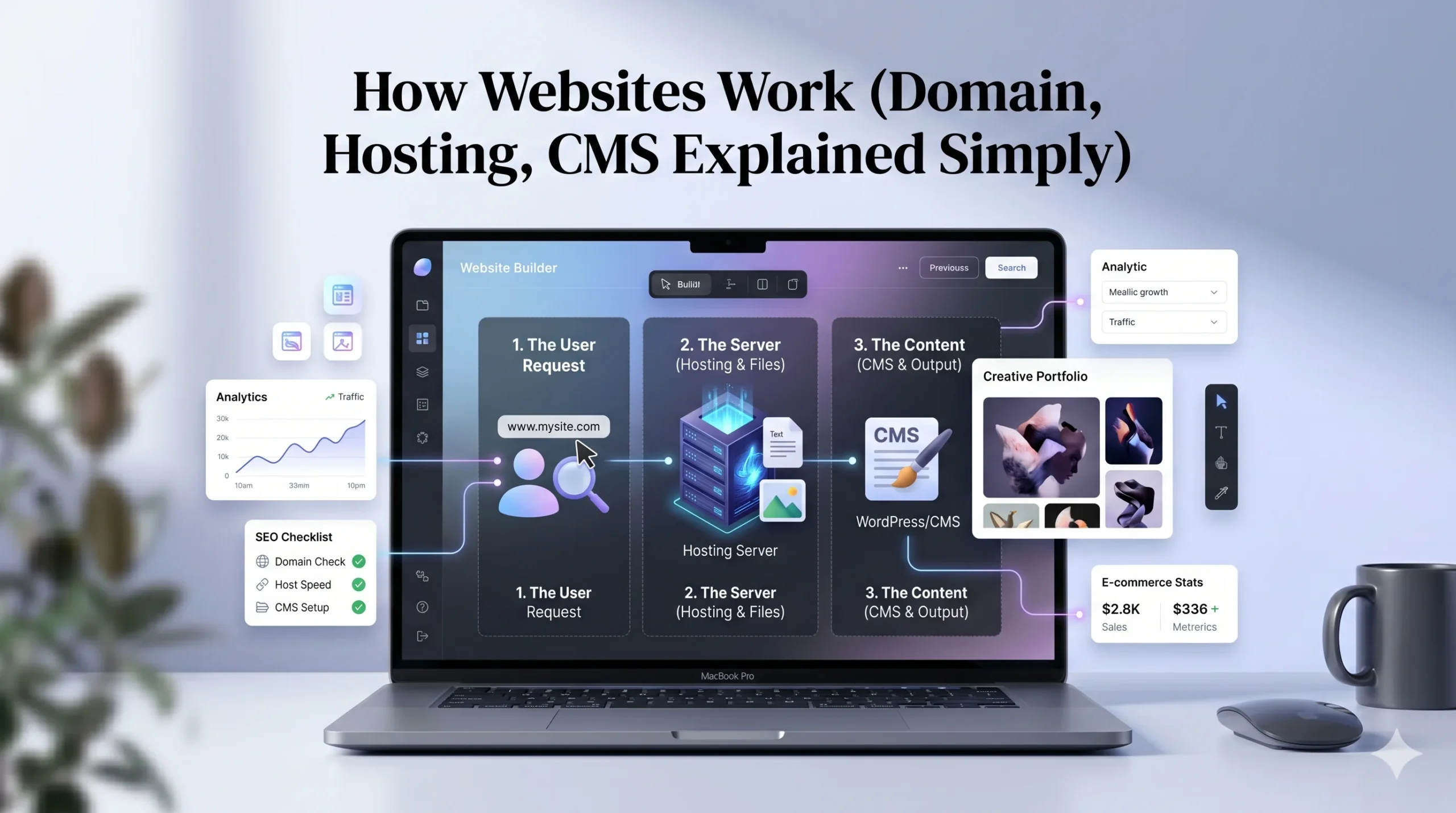
At a basic level, a website works like this:
- A user types a web address into their browser
- The browser connects to a server
- The server sends website files
- The browser displays the website
Three key elements make this possible:
- Domain name
- Web hosting
- Content Management System (CMS)
What Is a Domain Name?
Simple Definition
A domain name is your website’s address on the internet.
Examples:
- google.com
- yourbusiness.com
Instead of remembering complex IP addresses (numbers), users type a domain name.
How Domains Work
Behind the scenes:
- Every website has an IP address
- The domain name points to that IP
- A system called DNS (Domain Name System) translates it
Real-World Analogy
Think of a domain as your home address:
- People use it to find your location
- Without it, visitors wouldn’t know where to go
Pros and Cons of Domains
Pros:
- Easy to remember
- Builds brand identity
- Looks professional
Cons:
- Requires yearly renewal
- Popular names may be unavailable
What Is Web Hosting?
Simple Definition
Web hosting is where your website’s files are stored.
It’s a server (a powerful computer) that keeps your website online and accessible.
How Hosting Works
When someone visits your website:
- Their browser sends a request
- The hosting server responds
- Files are delivered and displayed
Types of Hosting
- Shared Hosting – Affordable, shared resources
- VPS Hosting – More control and performance
- Dedicated Hosting – Full server control
- Cloud Hosting – Scalable and flexible
Real-World Analogy
If the domain is your address, hosting is your house where everything lives.
Pros and Cons of Hosting
Pros:
- Keeps your site online
- Handles traffic
- Stores data
Cons:
- Monthly/annual cost
- Performance depends on provider
What Is a CMS (Content Management System)?
Simple Definition
A CMS is software that lets you create and manage website content without coding.
What a CMS Does
- Allows you to add pages
- Edit text and images
- Manage blog posts
- Control website structure
Examples of CMS
- WordPress
- Website builders
- Custom platforms
Modern tools like Wix and Squarespace combine CMS features with design tools.
Real-World Analogy
A CMS is like the dashboard of your website, where you control everything without needing technical skills.
Pros and Cons of CMS
Pros:
- Easy to use
- No coding required
- Fast content updates
Cons:
- Limited flexibility compared to coding
- Depends on platform features
How Domain, Hosting, and CMS Work Together
These three components are connected:
| Component | Role |
|---|---|
| Domain | Address of your website |
| Hosting | Storage for website files |
| CMS | Tool to manage content |
Step-by-Step Flow:
- User enters domain name
- Domain points to hosting server
- Server processes request
- CMS generates content
- Website appears in browser
Traditional Setup vs Website Builders
Traditional Method
You need to:
- Buy domain separately
- Purchase hosting
- Install CMS (like WordPress)
Website Builders (Simplified Method)
Platforms like Wix and Squarespace combine everything:
- Domain (optional)
- Hosting
- CMS
- Design tools
Key Advantage
This all-in-one approach reduces complexity, especially for beginners.
Wix vs Squarespace: How They Simplify Website Creation
Both platforms handle domain, hosting, and CMS internally, but they differ slightly.
| Feature | Wix | Squarespace |
|---|---|---|
| Ease of Use | Very beginner-friendly | Slightly structured |
| Setup Process | Guided and flexible | Clean and streamlined |
| Templates | Wide variety | High-quality designs |
| CMS Features | Flexible | Structured content editing |
| SEO Tools | Beginner-friendly | Strong but less guided |
| Best For | Beginners, small businesses | Creatives, portfolios |
Summary
- Choose Wix if you want flexibility and ease
- Choose Squarespace if you prefer clean design and simplicity
Real-World Example: Putting It All Together
Imagine you want to create a business website:
- You register a domain (yourbusiness.com)
- You use hosting to store your site
- You use a CMS to design and manage pages
Or, using a builder like Wix:
- Everything is handled in one dashboard
- You focus on content instead of technical setup
Actionable Tips for Beginners
- Start with a clear website goal
- Choose a simple domain name
- Avoid overcomplicating hosting options
- Use a beginner-friendly CMS
- Focus on content before advanced features
Who Should Use This?
This guide is ideal for:
- Beginners learning website basics
- Small business owners
- Freelancers
- Students
- Anyone planning to build a website
FAQs
1. What is the difference between domain and hosting?
A domain is your website address, while hosting stores your website files.
2. Do I need both domain and hosting?
Yes, unless you use platforms like Wix or Squarespace, which combine them.
3. What is the easiest way to build a website?
Using a website builder is the easiest option for beginners.
4. Can I build a website without a CMS?
Yes, but it requires coding knowledge.
5. Which is better: Wix or Squarespace?
It depends:
- Wix = flexibility and ease
- Squarespace = design and simplicity
Final Verdict
Understanding how websites work (domain, hosting, CMS explained simply) gives you a strong foundation for building your online presence.
While the traditional setup offers flexibility, it can be complex for beginners. Website builders like Wix and Squarespace simplify the process by combining domain, hosting, and CMS into one platform.
For most beginners, starting with an all-in-one solution is practical and efficient. As your needs grow, you can explore more advanced options.
The key is to understand the basics first—then choose the tools that match your goals.