How to Create a Website Using Wix (Step-by-Step Guide)
Creating a website no longer requires advanced coding skills or hiring a professional developer. Modern website builders like Wix have made it possible for beginners, freelancers, small businesses, and creators to build functional websites through visual editing tools and ready-made templates.
However, many first-time users still feel overwhelmed when starting their first website. Questions about templates, hosting, SEO, customization, and pricing often create confusion.
This step-by-step guide explains how to create a website using Wix in a clear and practical way. You will learn how Wix works, how to set up your website properly, how to optimize it for search engines, and how Wix compares to Squarespace in key areas.
Whether you are building a personal blog, portfolio, business website, or online store, this guide will help you understand the process from start to finish.
What Is Wix?
Wix is a cloud-based website builder that allows users to create websites using drag-and-drop editing tools instead of traditional coding.
The platform includes:
- Website hosting
- Templates
- Design customization
- Ecommerce tools
- SEO features
- App integrations
- Blogging functionality
Wix is often considered one of the best website builders for beginners because most features can be managed visually.
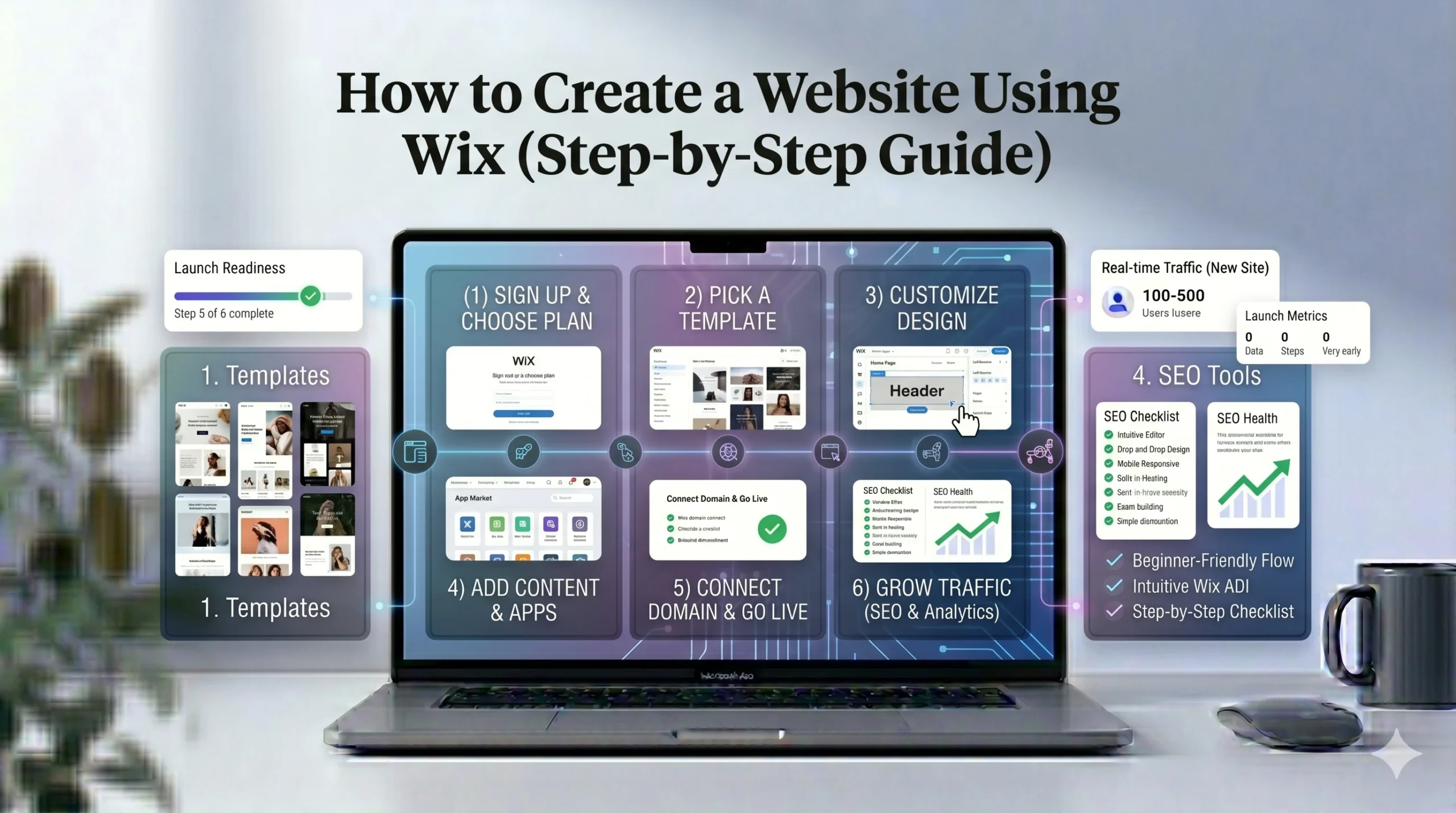
Step-by-Step Guide to Creating a Website Using Wix
Step 1: Create a Wix Account
The first step is signing up on the Wix platform.
How to Get Started
Visit:
You can create an account using:
- Email address
- Google account
- Facebook login
After registration, Wix asks a few questions about:
- Your website type
- Business category
- Website goals
This helps Wix personalize recommendations.
Beginner Tip
Take time to define your website purpose before continuing.
For example:
- Business website
- Online portfolio
- Ecommerce store
- Blog
- Service website
A clear goal makes the setup process easier later.
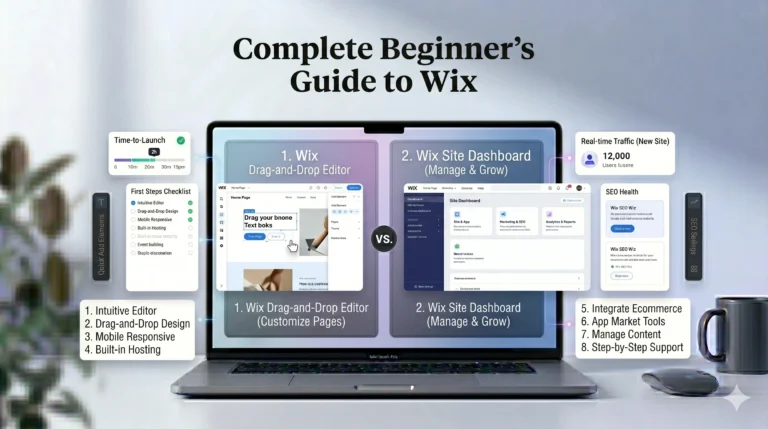
Step 2: Choose Between Wix ADI and Wix Editor
Wix offers two main website creation methods.
| Option | Best For |
|---|---|
| Wix ADI | Beginners wanting fast setup |
| Wix Editor | Users wanting full customization |
What Is Wix ADI?
Wix ADI (Artificial Design Intelligence) automatically creates a website after asking several questions.
It can generate:
- Basic layouts
- Color schemes
- Suggested pages
- Starter content
This option is useful for users who want a quick starting point.
What Is the Wix Editor?
The Wix Editor provides full drag-and-drop customization.
Users can manually edit:
- Sections
- Images
- Menus
- Text
- Buttons
- Backgrounds
- Animations
Most users eventually use the standard editor because it offers more flexibility.
Pros and Cons
Wix ADI Pros
- Faster setup
- Beginner-friendly
- Less overwhelming
Wix ADI Cons
- Limited customization
- Generic layouts
Wix Editor Pros
- Full creative control
- Flexible page layouts
- Better branding customization
Wix Editor Cons
- Slight learning curve
- Easier to overdesign pages
Step 3: Select a Website Template
Templates are pre-designed website layouts.
Wix provides hundreds of templates organized by industry categories.
Popular Template Categories
- Business
- Restaurant
- Portfolio
- Blog
- Ecommerce
- Photography
- Fitness
- Consulting
How to Choose the Right Template
Before selecting a template, consider:
- Website purpose
- Branding style
- Required features
- Mobile responsiveness
For example:
- A photographer may prioritize galleries
- A local business may need booking forms
- A blogger may focus on article layouts
Important Limitation
Wix does not easily allow template switching after publishing. Choose carefully before investing significant time into customization.
Step 4: Customize Your Website Design
After selecting a template, the next step is customization.
Common Elements to Edit
You can customize:
- Logo
- Fonts
- Colors
- Images
- Navigation menus
- Homepage banners
- Contact forms
- Footer sections
The drag-and-drop system allows users to move elements freely around the page.
Design Best Practices
Many beginners add too many design effects. Simplicity usually performs better.
Try to:
- Use consistent colors
- Keep spacing clean
- Avoid excessive animations
- Maintain readable typography
Mobile Optimization
Wix automatically creates a mobile version of your site, but manual review is important.
Check:
- Text readability
- Image sizing
- Button spacing
- Navigation menus
Mobile usability affects both user experience and SEO rankings.
Step 5: Add Website Pages
Most websites require several essential pages.
Important Website Pages
| Page | Purpose |
|---|---|
| Home | Main introduction |
| About | Business or personal background |
| Services | Explain offerings |
| Blog | Publish articles |
| Contact | Customer communication |
| Privacy Policy | Legal compliance |
Ecommerce Websites
If you are building an online store, additional pages may include:
- Product pages
- Cart page
- Shipping information
- Return policies
Portfolio Websites
Creative professionals may add:
- Project galleries
- Testimonials
- Resume sections
Step 6: Add Features Through Wix Apps
The Wix App Market allows users to expand functionality without coding.
Popular Wix Apps
| App | Purpose |
|---|---|
| Wix Stores | Ecommerce |
| Wix Blog | Blogging |
| Wix Bookings | Appointment scheduling |
| Wix Chat | Live customer support |
| Wix Forms | Lead collection |
Third-Party Integrations
Wix also supports:
- Google Analytics
- PayPal
- Stripe
- Mailchimp
- Meta Pixel
These integrations help businesses manage marketing and payments more efficiently.
App Marketplace Considerations
Advantages
- Easy installation
- Beginner-friendly setup
- No coding required
Disadvantages
- Some apps cost extra
- Too many apps may slow websites
Step 7: Optimize Your Website for SEO
SEO (Search Engine Optimization) helps your website appear in search results.
Wix has improved its SEO capabilities significantly over the years.
Basic Wix SEO Settings
Important SEO settings include:
- Meta titles
- Meta descriptions
- Custom URLs
- Image alt text
- Mobile optimization
- SSL security
Use Wix SEO Setup Checklist
Wix includes a built-in SEO checklist that guides beginners through optimization tasks.
It helps users:
- Connect Google Search Console
- Improve indexing
- Add keywords
- Optimize pages
Blogging for SEO
Publishing helpful content regularly can improve visibility.
Examples:
- Tutorials
- Industry guides
- Product explanations
- FAQs
Content marketing remains one of the most sustainable ways to grow traffic.
Beginner SEO Tips
- Use clear page titles
- Avoid keyword stuffing
- Compress large images
- Write descriptive headings
- Link related pages together
Step 8: Connect a Domain Name
A custom domain makes your website appear more professional.
Example:
- yourbusiness.com
Instead of:
- username.wixsite.com
Domain Options
You can:
- Buy a domain directly through Wix
- Connect a domain purchased elsewhere
Why a Custom Domain Matters
Custom domains:
- Improve branding
- Build credibility
- Help marketing efforts
- Look more professional
Step 9: Review and Test Your Website
Before publishing, review your website carefully.
Important Testing Areas
Check:
- Mobile responsiveness
- Broken links
- Contact forms
- Loading speed
- Navigation menus
- Spelling and grammar
User Experience Tip
Ask a friend or colleague to browse the website before launch. Fresh feedback often identifies usability issues you may miss.
Step 10: Publish Your Website
Once everything is ready, click the Publish button.
Your website becomes accessible online immediately.
After Publishing
Website creation does not end after launch.
Ongoing tasks include:
- Updating content
- Monitoring SEO
- Publishing blog posts
- Improving performance
- Reviewing analytics
Successful websites are usually maintained consistently over time.
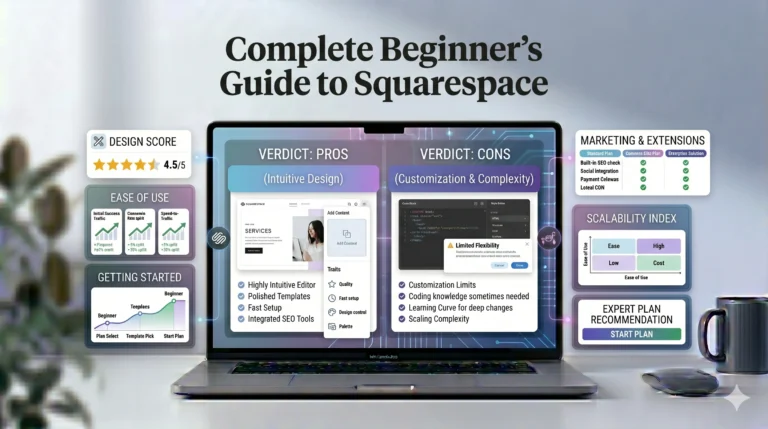
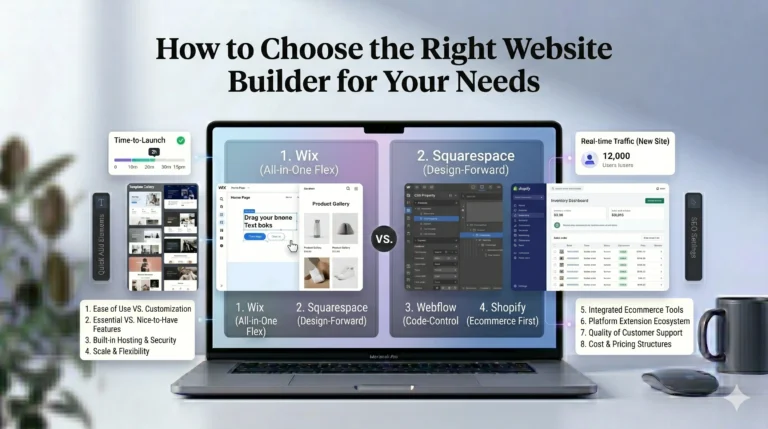
Wix vs Squarespace: Which Is Better for Website Creation?
Many users compare Wix vs Squarespace before deciding on a platform.
| Feature | Wix | Squarespace |
|---|---|---|
| Ease of Use | Very beginner-friendly | Structured but polished |
| Templates | Large template library | Smaller but refined designs |
| Design Flexibility | High | Moderate |
| Editor Style | Drag-and-drop | Section-based |
| SEO Features | Strong beginner SEO | Strong built-in SEO |
| Ecommerce | Flexible for small stores | Strong visual commerce |
| App Marketplace | Large | Smaller ecosystem |
When Wix May Be Better
Wix is often better for:
- Beginners
- Flexible design needs
- Small businesses
- Creative websites
When Squarespace May Be Better
Squarespace may suit:
- Minimalist brands
- Portfolio websites
- Design-focused businesses
- Users preferring structured editing
Who Should Use Wix?
Wix Is Best For
- First-time website creators
- Freelancers
- Small business owners
- Bloggers
- Personal brands
- Local businesses
Wix May Not Be Ideal For
- Large enterprise websites
- Highly advanced developers
- Complex custom web applications
Real-World Website Examples Using Wix
Small Business Website
A local service business can use Wix to:
- Display services
- Accept bookings
- Collect leads
- Improve local SEO
Portfolio Website
Designers and photographers can:
- Showcase projects
- Create galleries
- Add client testimonials
Online Store
Small ecommerce businesses can:
- Sell products
- Accept online payments
- Manage inventory
Frequently Asked Questions
Is Wix free to use?
Yes. Wix offers a free plan, but it includes Wix branding and a Wix subdomain. Premium plans unlock custom domains and additional features.
Can beginners build a website with Wix?
Yes. Wix is specifically designed for users with little or no coding experience.
Is Wix good for SEO?
Modern Wix SEO tools support many important optimization practices, including metadata editing, mobile optimization, and sitemap generation.
Can I switch templates later?
Wix does not allow seamless template switching after your site is created, so choosing carefully at the beginning is important.
Is Wix better than Squarespace?
It depends on your priorities. Wix offers greater design flexibility, while Squarespace focuses more on polished and structured visual design.
Final Verdict
Wix remains one of the most accessible and flexible website builders for beginners and small businesses. Its drag-and-drop editor, large template selection, built-in SEO tools, and app marketplace make it suitable for many types of websites without requiring coding skills.
For users who value customization and ease of use, Wix provides a practical balance between flexibility and simplicity. Meanwhile, users prioritizing minimalistic design consistency may still prefer Squarespace.
The best website builder ultimately depends on:
- Your technical experience
- Website goals
- Design preferences
- Budget
- Long-term growth plans
By understanding the strengths and limitations of each platform, users can make a more informed and confident website-building decision.